Blizzard of ‘22
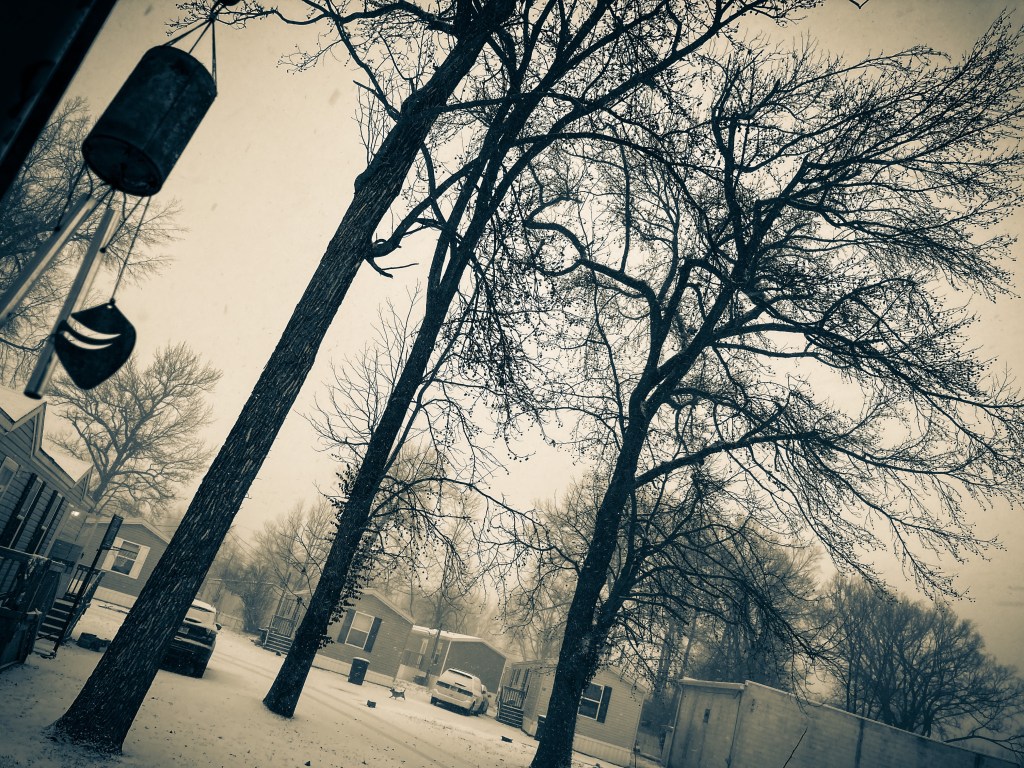
People be losing they damn minds out there in that 1/2 inch of snow, drivin’ like they in Antarctica and sheee.
Taken an hour ago: Iphone SE. 1.28.22.
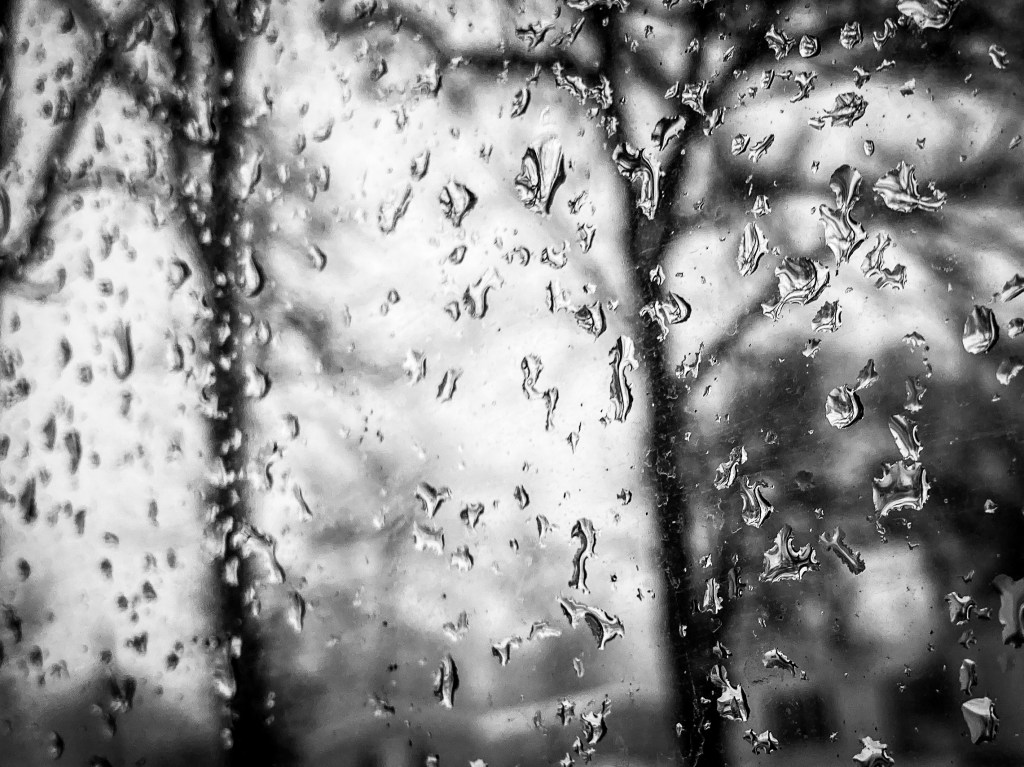
Melted snow on glass.
Throughway

Iphone SE
New Work

Set of 4, vegetable fine art prints. Click here to purchase, or click on print:
8 x 10 (set of 4)- $85
13 x 19 (set of 4) -$135

Bird’s nest fine art print, in colour and black and white. Click here or click on print to purchase:
8 x 10 -$30
13 x 19- $55


Ghostly
Title: “Ghostly”
Click HERE to purchase in Monochromejunkie Ebay store.
(Brand new and under construction. 🙂 )
8 x 10 – $25, Set of 2 – $45
13 x 19 – $55, Set of 2 – $85
*Free Shipping
This is for you, Sean.
I’m so sorry you couldn’t find the comfort you so desperately needed in this world.
I’m sorry that the system failed you. (It failed me too, in many ways.)
I’m sorry that the only solution they offered was to shove fistfulls of pills into you.
I’m sorry they convinced you to undergo Electric Shock Therapy.
I’m sorry that you were hurting so badly inside. More than anyone knew.
I’m sorry that you spent your entire life doubting that anyone cared for you.
I can’t accept the fact that you’re really gone.
I found your book on Amazon: Stories of How I End. Which is like your entire blog, pressed into a book. I’ll buy a copy soon, and I’ll do what I can to promote your work.
I will make that promise to you. And I will keep it, friend. I miss you.
I’m sorry. x
#suicideisnevertheanswer
Triptych: Waterscape
Super Takumar 135/3.5 -vintage film lens- Set of 3 8×10’s panoramic triptych
-click on print to purchase-

Pressure Cooker Squared
I’ve got until Sunday to cover 400 pages- midterms. [Insert scream here!]
Midterms (and finals) are always so much freaking pressure! I’m still at a B+ in Behavioral Neuroscience and a strong A in Cognitive Psychology, but any ole way you slice it- midterms are crazy. I find myself using straight up avoidance (which is actually worse than denial, because at least with denial, you’re not always aware that you’re in denial, but with avoidance, it’s sort of like knowing you’re in denial and choosing to do so anyway- and yes, I’m aware that I’m starting to sound like a psychologist!) and so it’s Friday night and I’m down to the wire.
What am I doing? Installing Still Life II. I actually get to be the detective and the abducted person who’s trapped in the psycho serial killer’s booby trap-laden house (think : “Saw”).
Avoidance. Utter, blatant avoidance.
But fun! 🙂
And this is for you, Gav. I know you’ve been down lately, and you’re not feeling much inspired, but I want you to know just how much you inspire me. I have so much respect for you because over the past 8 years or so that I’ve known you (originally from Redbubble) but here too these past few years, you go out – day after day- and shoot nothing but black and white/monochrome. Street scenes, people- life. And, you have a prominent talent with shadows and lighting- which I love. I’ve only shared this with one other person, but I’ve decided to devote an entire year- all of 2015- to solely black and white/monochromatic photography. No colour allowed! For an entire year. it’s going to be great. 🙂 So, while you feel “blah” lately, please know that your work and talent continues to inspire others. This is for you:
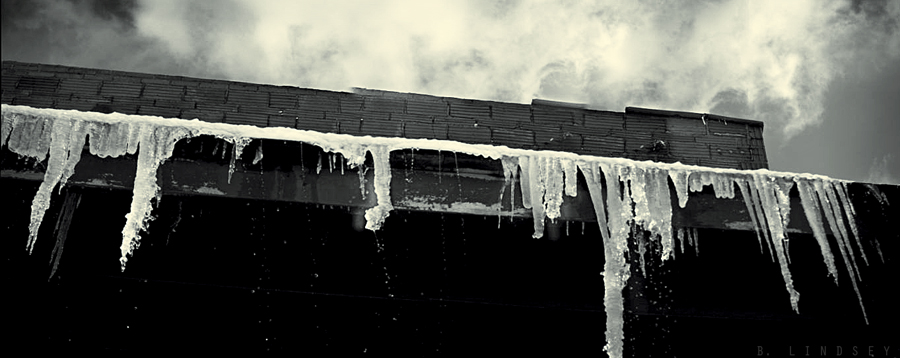
Semi-pano/old military factory in my town- Carl Zeiss Jena Flektogon 35/2.5 film- FRIGID COLD- love ya, buddy! x p.s. Congratz on your show/exhibition last month!
Time to Celebrate!
Usually, I don’t celebrate before my final exams, but in the past two days, I’ve just finished up my 5 page psych. paper (APA, of course + 5 peer reviewed journal references) + Cross Cultural Communication Powerpoint prezi (with audio) along with 14 forum postings. Whew!
So yeah, it’s time to celebrate. I only have 3 final exams remaining- I’ve finished my last homework assignment tonight. The worst is over! Everything else is gravy.
I’m really excited to begin a new chapter in my life and feed the artist in me that’s been dying to get out for so long. I’m venturing into new artistic territory by converting my RAW high quality photos into digitally rendered imapstos & gauche oils as well as watercolours. Here are two examples:
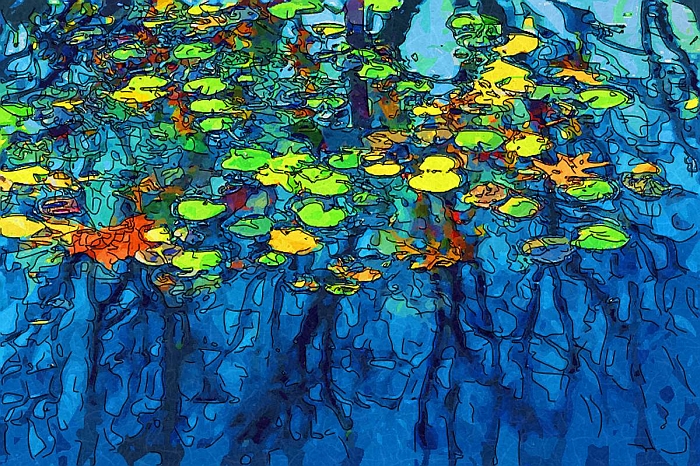
And Joshua’s tree

Josh and I did the last one together, hence the title. Off to make green tea and feed my guy. Au Voir!
Monet: Museum of Modern Art
This is for you, Al. :0) I wanted to share with you my processes for the resulting canvas print.
I first started with an original print of museum-goers at the Museum of Modern Art in New York, New York, who were admiring Monet’s Water Lilies. I took the pic back in 2010 on a trip to Manhattan/Times Square with my youngest daughter, Brianna. I was admiring the museum-goers as they were admiring Monet’s Water Lilies, which were enormous prints that covered each wall around the entire room. So, I snapped their pic with a wide angle lens. (They never even knew I was there.)
From there, I converted it into a B&W and did a basic colour hue shift on Monet’s Water Lilies. They were originally blue and green, but I preferred pumpkin orange. 😉 I incorporated several textures to give it a broken/damaged vibe (which I adore) and so the final result was this:
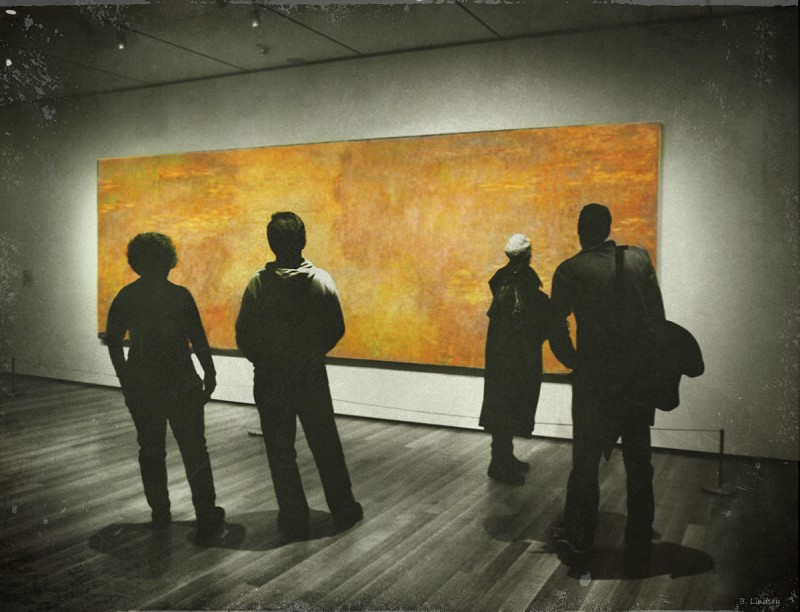
The people below aren’t the exact same, but the process is. (Only the group of people have changed.) From there, I ran it through various programs and tweaked it severely so that it would resemble a fauvist oil painting. I distorted the people a la Munch’s “The Scream” and gave the image bright, citrus Van Gogh colours. The final result became this:
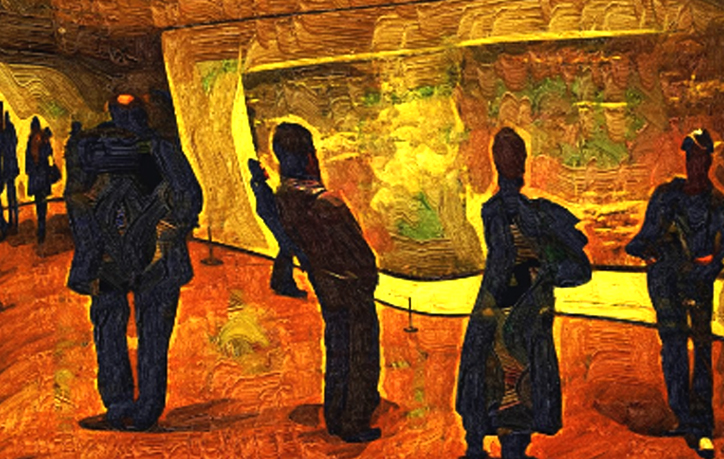
And that is the extra large (60 x 38) 5 foot canvas print that was purchased for $1,138. Once I cut out the middle man, I will sell the print right at $1,000 roughly and double my royalty, but as you said, were it not for the middleman to begin with! (Hope you enjoyed the art show!) x
This One’s for You, Kid
So I usually dedicate a pic here and there to people who inspire me in my life. Lately, I’ve been biased and have been dedicating them to my buddy, Y, because she’s just so darn special. But I want to show my appreciate to another gal who is one of the funniest, sweetest, and smartest people I’ve ever known. I came across her blog some time back and swore i was reading an SNL skit. She goes by the name Lucky Wreck, but I call her Amy sometimes. ;0)
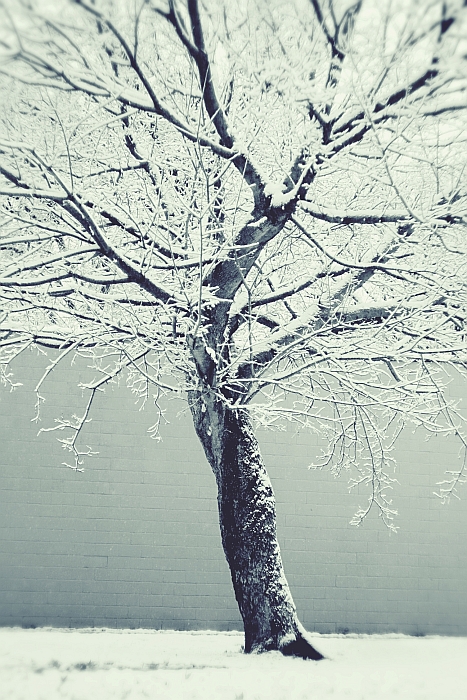
Anyway Amy, this one’s for you, kid! When I’m inspired by someone, my work takes on various forms that aren’t always indicative of my style. (Usually, I’m dark and gothicy- ish, so this is really different for me, but it does remind me of you.) If you’d like a full rez. copy for printing, hook me up with your email address and I’ll send it to you. This one’s on the house. 😉
(Can you tell I’m excited that school’s almost out? I can’t stop taking pics!)
I hope you like it. I took it this morning just after dawn when the snow was still falling. x
No Greater Love
-John 15:13
Greater love hath no man than this, that a man lay down his life for his friends.
I used to think that Scripture was about Jesus dying on the Cross (only). Now I have a deeper understanding of it. I think now, in order to truly love one another, we have to die to ourselves- even if just a little bit. it takes strength and courage to be selfless. In the world we live in today, self promotion is a way of life: Facebook, Twitter, blogs.
I’ve been hit pretty hard lately and have had to scrape myself up off of the floor. I can’t write about it here as I want to protect the nature of the matter and the persons involved, but it’s one of the hardest things I’ve ever had to deal with to date. My soul really felt as if it could have just perished. But yesterday, and the day before, I awoke with a whirlwind surrounding me. I could feel the Lord circling me with His strength. His breath was rushing through me- the Holy Ghost- which I’m a big believer in was rushing through me like cold water- there’s really nothing like it. It’s like having goosebumps on the inside. Two mornings ago it was so strong it actually pulled me out of sleep and yesterday it was the same thing. This morning I woke up and it’s been the same thing- so very strongly. When it’s this strong, I know that I’m feeling the prayers of others who are praying for me.
I have a sneaking suspicion I know who that person is. 🙂
When we pray for other people, we nail ourselves to the Cross, as it were. As we take on their burdens, we also take on death and die to “self”, becoming crucified with Christ. I know now that this is what that Scripture means. When we pray for others, we’re laying down our lives for them- standing in the gap.
So Y, this is a special thank you to you, because I know your prayers have broken through! I’m strengthened and feel so much stronger. My spirit is revived and I can literally feel your prayers and I’m rejoicing. Thank you my friend. ♥
I’m dedicating this pic to you! Rain on glass. (Yes, I was actually driving in the rain when I captured this shot. I know, “bad me!” But it was worth the efforts!) it was nothing special at first, but then I defocused the lens and it turned into this beautiful, impressionistic work of art of the traffic in front of me. Hope you likey! 🙂
Helios 44-2 film lens/Canon Rebel XSI/SOOTC- straight out of the camera
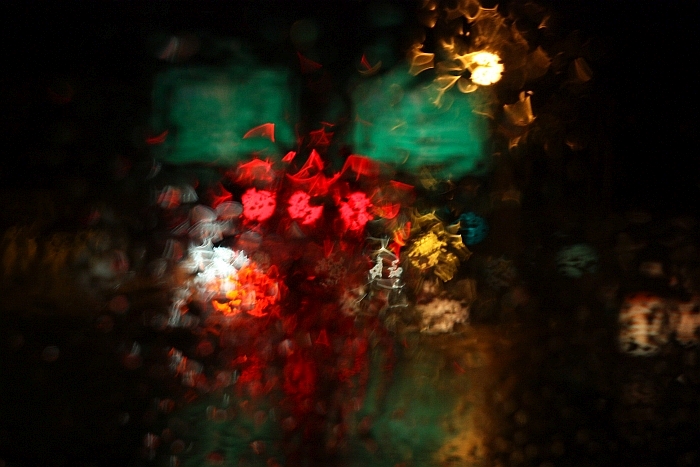
Early Morning Rain
It’s 7:39 a.m. and I’ve been up all night again. I usually am these days. I noticed that I prefer working through the night- in dark, quiet solitude, rather than during the day. I’m making tea and getting ready to start on my literature review: I’ve completed my Methods and Results Drafts. The literature review is usually the part of the scientific paper that introduces the hypothesis; which is why it’s also called the Introduction (section). All in all, it’ll be 10 pages or so, and so I’ve been working for weeks on drafts. I’ve never been more tempted to quit! There’s roughly 5 weeks to go still before the semester ends. I messed up by going out and getting a batch of fresh shots. I forgot how fun it was!
This is a collage I made from fresh leaves found in my back yard two days ago.
Helios 44-2 film lens/Canon Rebel XSI/natural sunlight
Available for purchase here
 .
.
Time to get cracking!
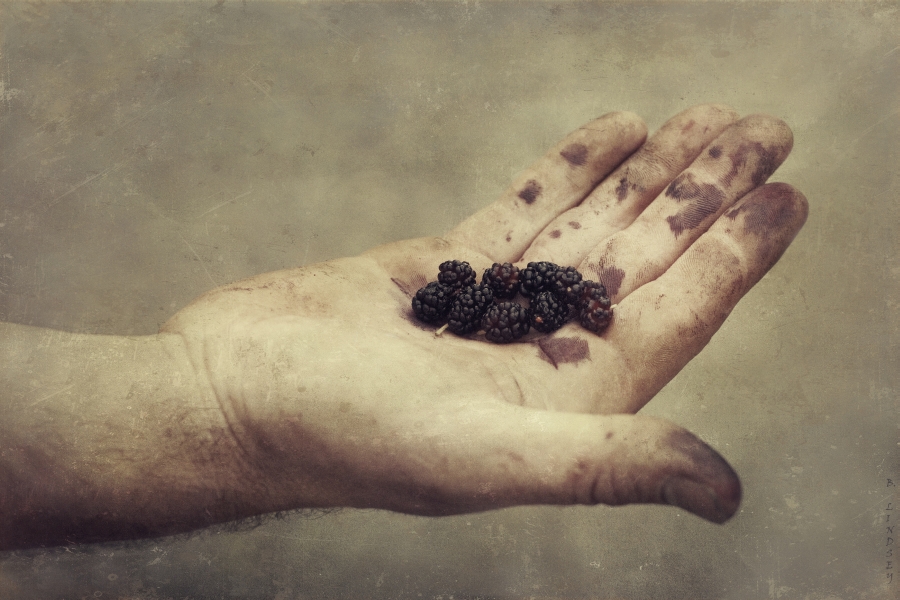
T.E.S.T.I.M.O.N.Y
Suffering.Pain.Sorrow.Crucifixion.Death.Resurrection.Hope.Love.Light.L I F E

SP/Cross made from popsicle sticks and dental floss
Circa: 2009
Bimonthly Selfie
 Selfie-Shot in kitchen window lighting/1.17.14- Helios 44-2 film lens/Digital Rebel/manual
Lighting is your friend, ladies!
Seeing how I’ve been getting all this extra attention lately, I thought it a good time to make a post about how to take a good selfie (technically speaking). Anybody that knows me truly knows that:
a.) I don’t take myself too seriously. Ever.
b.) I look 20 years younger than I actually am, thanks to Photoshop. (I’m 44.)
c.) I don’t shave my legs and I really don’t care. (But that’s beside the point.)
Normally, I stay oblivious to my “audience” and rarely write for others. Not that I have anything against that, I’m particularly too lazy to keep up with all of the hooplah and riffraff. But tonight, I decided to address selfies and lighting and that sort of thing, because, who doesn’t have a few bad selfies lying around? (I have hundreds.) Not that I’m a narcissist, I’m a photographer: there’s a difference. (Not really.) But if you have a guy-friend that pilfers through your hard drive like I used to do with my ex’s, then you can just tell him “you’re a photographer” and he won’t think twice about it.
I have a bit of a cheap wine hangunder at the moment, so I’ll keep this list short and sweet. I know there are all sorts of one-click filters out there to make you look all selfielicious and everything, but if you stick to these pointers, I promise you, you’ll cut a few corners, save time, and look a heck of a lot better.
- Go into the light!
Find a “window light” source. It doesn’t have to be fancy; everything I do is cheap and at a fraction of the cost that others spend. Natural window lighting is the best light in the world for selfies- I promise! Don’t use midday lighting: it’s harsh and will either blast your pupils, simulating an unflattering meth-addiction, or it’ll highlight your shadows and age you instead. (You don’t want that.) The best time for good-selfie lighting is early morning to midday (just before noon), and late afternoon to early evening. Also, apart from professional and expensive lighting, nothing puts beautiful catchlights in your eyes like a window. (See pic above.) - Embrace your flaws
As you can see in my selfie, I’m make-up free and alright with showing a few lines and pores. It’s natural. Guys want to sleep with Barbie but they really don’t want to take her to lunch. Don’t be a Barbie. - Look like you’re going to kick somebody’s ass
This is my go-to look that works for most pictures. It’s alright to smile! But this is always good to fall back on and believe me, you’re going to need to fall back on this at some point. - Stretch your face muscles before a shoot. Mimic the word “WOW” in excess, raising your eyebrows simultaneously; it’s a little weird at first, but it loosens up the expression and circulates the blood. Do this about 50 times, and really, it’s good do get in the habit of doing this daily because it tightens up the facial muscles. (I’ve done it for years.) After you’re finished, your face will relax into a “default” comfortable expression. If that doesn’t work, look like you’re going to kick somebody’s ass.
- Keep the camera slightly above your head, point your chin down a hair, and lock your eyes into place.
There’s nothing worse that enlarged nostrils, double chins, and bad angles. Keeping the camera above your head slightly (preferably at 3/4ths of an angle) will flatter your angles.
There you have it.
You’re welcome!
Turkey Bones
Turkey Bones
White clean
Two lovers
Eternally embraced
Lying together
On their mirrored bed of hot silver
Goblets of wine at their feet
They have waited
For their annual feast
Conjoined twins
Twisted at birth
Cartilaged duo
Greedy hands cannot wait
To rip you apart
Destroy and sever you
Ugly dry bones that are good for nothing
But picking at the teeth of an angry fat man
And in the end
You’ve made his dreams come true
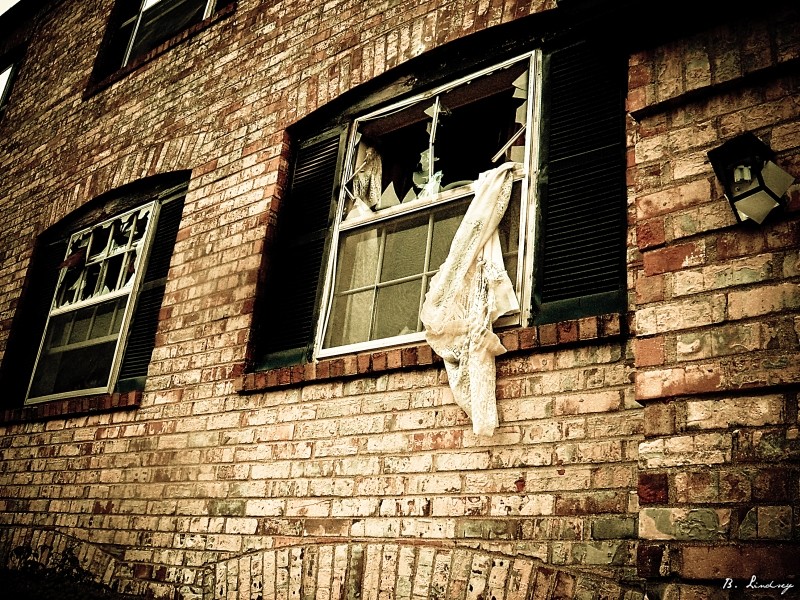
Little Things
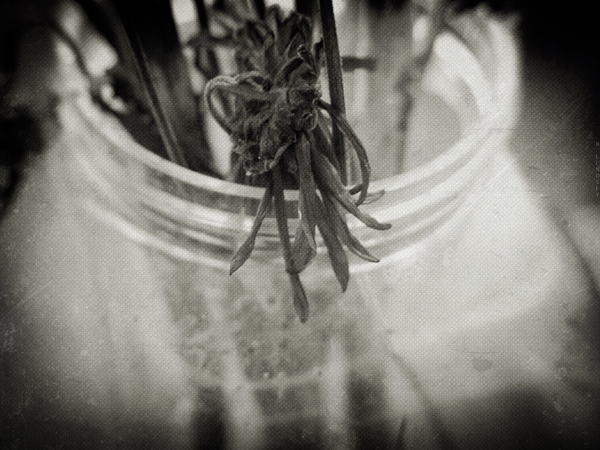
For my friend: All the Avenues Look Ugly.
I know you hate the world, I do too sometimes, and I know you want to die and think about it a lot. I want to tell you while there’s still time that you are a beautiful person! We all shine in different ways. Some of us are happy, bubbly, people that refuse to see negativity in the world, and some of us see the wreckage because we know it’s there.
I wish I had something profound and life-changing to say. But I really want to say that even dead flowers in a jar can be beautiful, and the point to all of this is that I care. You are loved, friend.
xo
Photography Basics and Layering with Textures
So Jen, I realize that if I’m waiting for a chance to “open up” for me to not be so busy, I’ll be waiting for a very long time. I’ve decided to sacrifice a bit of my schoolwork to share with you some of the photography tips and tricks that I’ve developed over the past decade. I’m going to demonstrate the four main areas of a photograph that are the most important to me:
- Composition
- Lighting and exposure
- Mood
- Rule of thirds
These are four areas that must be present in most of my photos and if they aren’t, then I supplement one of the other areas with an extra amount. Such as, if the lighting isn’t the best, kick up the mood. (Etc.) This is a good short list to stick with and think about these things always when taking your photo. Because of the ability to simply slap a filter on a photo in post processing (Iphone apps, Photoshop, Gimp, Picmonkey, etc.) it’s all too easy to fall into the “lazy photographer” trap and think, “Eh…I’ll fix it in Photoshop.” But again, this makes for bad pictures that are heavily “shopped”. I’m going to teach you a few in-camera basics that will give you a good solid pic to start out with. That way, when you dress it up, it’ll be that much better (not that much worse). What I’m going to teach you is going to seem like a lot of hard work! That’s because it is. Everything I do is manually done in “layers” – sometimes one photo can have 20+ different layers blended together. If you learn how to do these things though, instead of just “slapping a filter on it”, you’ll have your own style that is tailor made and it will be very difficult to replicate. Editing is very much like gourmet cooking. We photographers all have our own “recipes” and we guard them closely! I’m going to give you all of the ingredients for you to create your own style. And, if you have your own style- you’ll stand out from your peers in this area. Compare every photograph you take with a painting. The SOOTC / straight out of the camera pic is the canvas. We’re going to use our photo editor to “paint it”.
First, here’s a small list of abbreviations that you’ll need to learn:
SOOTC: straight out of the camera
AP: aperture
Sh. Sp.: shutter speed
WB: white balance
PS: Photoshop
“Shopping”: Photoshopping
BG: background
FG: foreground
B&W: black and white
Let’s start with toilet paper.
I took this shot a moment ago on my bathroom floor. I like using toilet paper because it’s simple.
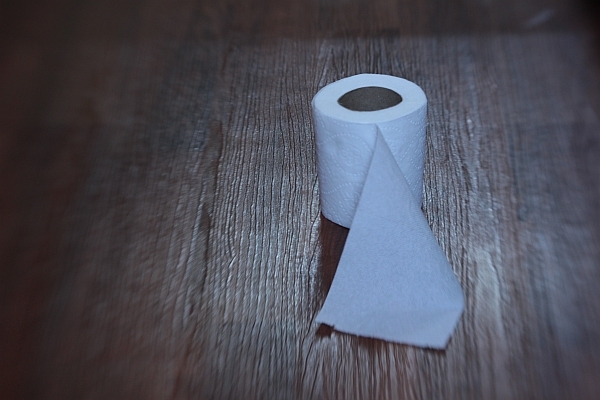
This is a SOOTC shot, or, “straight out of the camera”. I like using the Lensbaby Composer lens because as you can see, it naturally blurs the edges of the frame. This particular kind of lens is great for moody, dramatic images (my trademark style) and especially vintage pieces. Here are the specs for this shot:
Lens used: Lensbaby Composer
Aperture: f/4
ISO: 400
Shutter speed: 1/15 sec.
I know you’re using a point and shoot and that’s ok; it’ll do just fine for this.
The first thing to do, always, with a shot is correct the WB/white balance if necessary, and much of the time, it’s necessary. You can see that the toilet paper is a little blue looking. It’s a good thing to make sure your WB/ white balance is preselected on your camera (this is the shady, cloudy, night shot area). If I would have paid attention beforehand, I would have selected “cloudy”, alas, half the time I don’t. For the record, it’s best if you do.
We’ll adjust the levels (midtones, shadows, contrast, lighting, and highlights in a few moments but let’s continue on first with the basics). Notice the composition: it’s off-centered. When composing your single subject, you should always try to off-center them slightly, no matter how slightly. This is where you’ll learn about “rule of thirds”. Imagine that a 4 lined grid is over your image: 2 lines vertically- 2 lines horizontally. It would look like this:
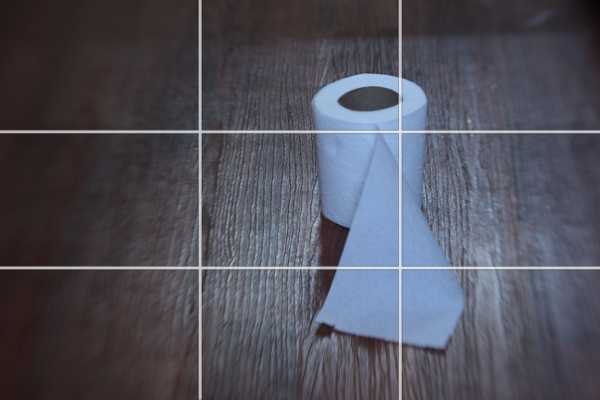
Notice the 4 connecting areas in the center: these are known as “power points”. Always place your subject, or subjects, in one of these areas. I have an invisible grid in my mind’s eye that is always there when I shoot and I’m always mindful of this. Over time, your “natural rule of thirds grid” will kick in and it will become like a second skin: you won’t even need to think about it.
Now let’s do a bit of post processing.
We’ll start with our levels.
We’re going to use GIMP because it’s a free photo editor. It’s a lot like Photoshop and much of the time, I actually prefer GIMP over PS/Photoshop. It can be daunting or overwhelming if you’ve never used it. Remember, fear is nothing more than the lack of education in an area. We’re afraid of what we don’t know much of the time. By learning the basics of photo editing, you’ll take the fear out of the equation and it won’t seem overwhelming any more.
You can find GIMP here:
http://www.gimp.org/downloads/
Just click on the 3rd or 4th line down in the first section.
Install the program and open up your pic : FILE/OPEN
It should look like this:
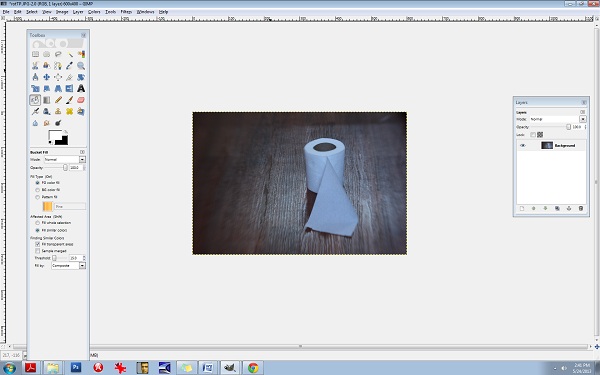
Be sure to open up your Toolbox panel on the left and have your “layers” there on the right. If these two crucial boxes do not open up on their own, you can do it manually by clicking on the WINDOWS tab at the top right corner. WINDOWS/DOCKABLE DIALOGS/LAYERS and WINDOWS/TOOLBOX.
You’ll need to keep these two boxes open throughout all of your editing.
Almost everything I do has to do with “layers” and this is not uncommon in photo editing. Even the most basic of editing (level adjustments) will often contain several layers and it’s one of the areas of photo editing that is an absolutely MUST to learn. Otherwise, you’ll be stuck with cheesy filters and one dimensional photos.
Right click on the Background layer in the LAYER box on the right. Select DUPLICATE LAYER. Now let’s go to the LEVELS area so you can make some minor adjustments.
Go to the COLORS tab at the top and select LEVELS.
You’ll see the LEVELS box pop up:

The diagram at the top is what you’ll want to adjust. Underneath the words INPUT LEVELS you’ll see 3 sliders. These control your shadows/midtones/and highlights. The shadows are the blackest/darkest parts of your image, the midtones are the midrange tones and the highlights are the brightest parts of the image. Always be careful with the highlights slider- you can easily blow out your whites. Let’s start with the middle slider:
It’s naturally set at 1.00 so set it at 36. Set the 1st slider (on the left) that controls the blacks or the shadows to 1.11 and set your highlights slider (the one all the way to the right) to 1.97.
You can see that the lighting is a bit more dramatic. Go ahead and duplicate this layer again. Double click on the text to rename it, (Rename it LEVELS) and then press enter to stabilize it. Rename the new layer CB for COLOR BALANCE.
Now let’s fix the colours and the WB/white balance. Go to your COLORS tab at the top and select COLOR BALANCE. This is another area that I’m constantly using. Let’s get rid of that blue cast. You’ll notice in your COLOR BALANCE area 3 specific ranges: shadows, midtones, and highlights. There are 3 sliders for each one and 6 hues to adjust, per slider. Remember, your highlights are the brighter areas of the photo, in this case, it pertains directly to the toilet paper, so select HIGHLIGHTS. Your goal here will be to move your sliders AWAY from the dominant colours here, which hare CYAN and BLUE. Every photo is different and the colour values and ranges will be different for every one. Instead of simply telling you which values to set your sliders to here, I want you to analyze the photo’s values, highlights in this case, and adjust each slider accordingly. I’ve learned over the years that a good counterbalance to CYAN is yellow and red, so let’s increase those channels’ values, decreasing the CYAN. Again, be sure that your HIGHLIGHTS channel is selected. Be sure to check that it’s indeed the top layer you’re working on (the layer named CB). Ok, let’s go.
Highlights:
Move slider AWAY from CYAN- +29
Move slider AWAY from MAGENTA- + 13
Move slider AWAY from BLUE (toward the YELLOW) -17
Be sure that your readings are the same:
29, 13, -17
The midtones look pretty good so let’s move on to the shadows and give them some warmth.
Move the top slider TOWARD the RED- +9.
Keep the center slider set at 0.
Move the bottom slider TOWARD the YELLOW- -11.
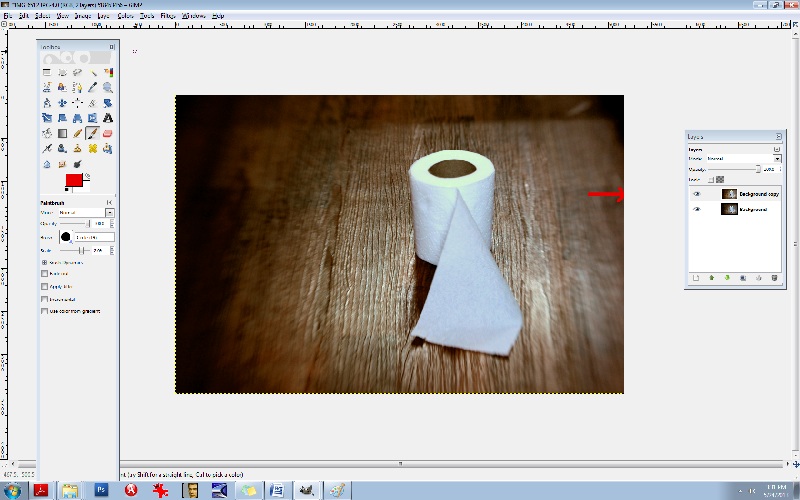
Notice in the LAYERS box, you’ll see a small EYE icon. This is your visibility toggle. If you can see the eye there, it means that that layer is visible. If you uncheck the eye, it means that that layer is currently invisible. This is especially useful as it allows you to toggle back and forth between pics for comparisons. Go ahead and click on the top layer which will set it to “invisible”. Continue clicking the CB-layer EYE and compare your LEVELS pic and your CB/color balance pic.
You’ll notice that the top layer has more reds and yellows- it’s your “warmer” layer. The layer underneath has stronger greens and blues- this is your cooler layer. Let’s mix the two. Notice that each layer has an OPACITY slider. This controls the visibility amount for each layer. Again, always be sure that you’re working in the correct layer beforehand. Choose the top layer, and bring your OPACITY slider down some. Let’s take it to 45%. This will give us a well balanced amount of reds, greens, yellows, and blues in the pic. What this does is increases your colour ranges and adds more depth.
Now, merge all of the layers together. Go to the IMAGE tab at the top, and select FLATTEN IMAGE.
It’s always best to duplicate any image you flatten. You’ll find in editing, it really is a continual cycle of merging and duplicating. So, duplicate it and be sure that you’re working in the top layer. Now, let’s add a textured layer to this. We’re going to bring a dramatic flair to this and give it a haunting feeling.
For this, let’s convert it to a B&W. Yes, all of that colour modification just to convert it to a B&W! The reason for this is to give it a better value and tonal range once it has been converted. There will be added layers of depth by adjusting the colours beforehand.
Click on your COLORS tab at the top and select DESATURATE. A small box will appear allowing you to choose from one of 3 areas: lightness, luminosity, and average. Select AVERAGE if you’re not sure which one to go with, but again, because every photo is different and every photo contains different values and ranges, some photos would be best suited for “luminosity” and so on so be sure to test all three for every image and choose the best one. (If you’re still unsure what to go with, choose AVERAGE.)
You’ll notice that we have a good range of tones here from the deepest of black to the brightest of white: this is what makes a good black and white photo. Rename the top layer to “B&W”. You should have the coloured image on the bottom and the B&W one on the top. Now, duplicate the B&W layer. You can rename it B&W2.
Let’s add a texture. (Adding a texture isn’t necessary at all, and it can be very tricky at first, but it compliments many photos, especially portraits, abandoned houses and such.) I like to add a texture or several sometimes because it too adds depth to your photo. I like things that look like hair or old film scratches- it gives my images a dirty, ugly-ish appearance and that’s exactly what I like.
So let’s add a dusty old film-scratch texture to this. Here’s what the texture looks like by itself:
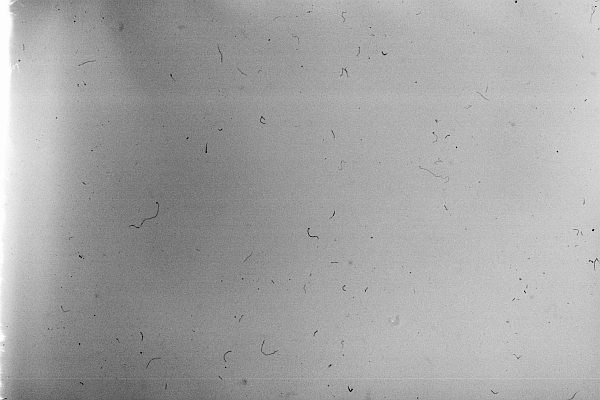
It’s one of my favourites.
When adding a texture to a photograph, it’s very important to make sure that your sizes match up. Check to see what size your image is in GIMP. You can do this by clicking on the IMAGE tab at the top and then select SCALE IMAGE. Notice the sizes there. Be sure that it’s set to PIXELS (the box on the right) and that the width and height are written down (or memorized). Those are the exact measurements that you’ll need to resize your texture to. I recommend using IRFANVIEW as a basic photo viewer, it also reads RAW files so that’s perfect. (I’ve used IRFANVIEW for 8 or so years now and it’s one of my most used tools.) You can get it here:
Download and install that. Once you’ve opened up your pic in IRFANVIEW, resize it to your proper width and height, and then IN IRFANVIEW- select EDIT/COPY. Now we’re ready to paste the texture into GIMP. After copying the texture, go to GIMP and select EDIT/PASTE.
Once the textured layer has been pasted into GIMP, you’ll notice on the right side in your LAYERS box that the top layer has been added. It’s what is now called a “floating channel”. You’ll need to stabilize it like the rest of the layers and it’s very simple to do. Right click the (top) floating channel (your texture layer) and click on ANCHOR LAYER.
Now you should see 3 stabilized layers there in your box. The texture in the top layer, the B&W image in the middle, and the coloured BG/background image in the bottom. We no longer need the coloured image in the bottom channel/layer so you can go ahead and click the eye, switching it over to invisibility if you like, or, you can leave it as is- it won’t hurt anything.
Now it’s time to learn about BLENDING MODES. In the LAYERS box you’ll notice the word MODE above the OPACITY slider. This is the area that gives your layers different effects. The blending modes I use most often are: overlay, multiply, screen, and soft light. There are lots of useful blending modes here though.
Be sure that you’re working in the top layer of the LAYER box (should be named B&W2 copy I think) and take the OPACITY down to about 63.4%. Go to your blending mode area which is MODE (again, it can be found above your OPACITY slider in your LAYER box) and set the mode to SCREEN. This is a bit of a light, silkscreen and gives your images a soft, smoky look. Afterwards, go ahead and flatten the image, again, you can find this area at IMAGE/FLATTEN IMAGE at the top tabs, and then immediately DUPLICATE the layer. It will then look like this:
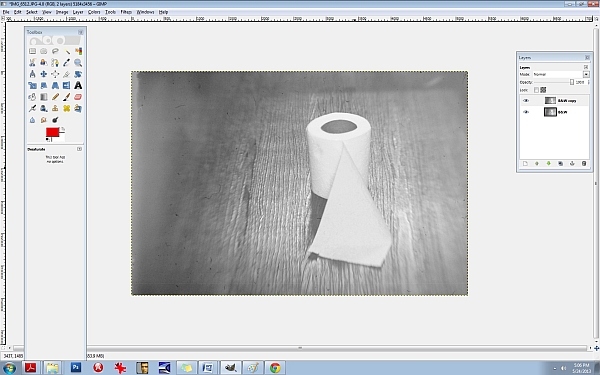
Next, let’s run it through the LEVELS again to increase the blacks/SHADOWS. I often repeat my processes two and three times throughout one photo edit. Increasing the shadows at this point will give the blacks a smeared/chalky chemical look. Let’s try it:
50/80/46
INPUT LEVELS/3 sliders:
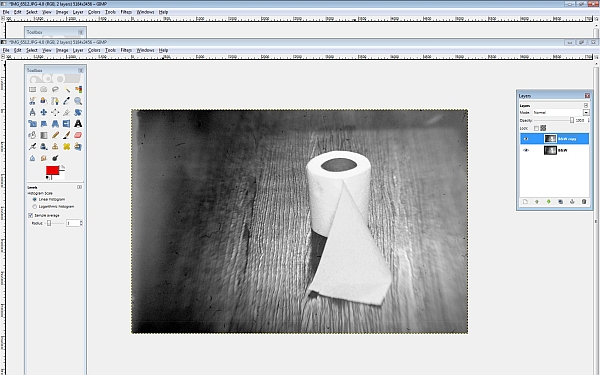
Shadows (1st slider all the way to the left)/ middle slider- midtones- .80/3rd slider all the way to the right (Highlights)- 245. Now, DUPLICATE the top layer again, and let’s hit the LEVELS one more time.
Set them at or around these levels:
INPUT LEVELS:
Shadows/1st slider all the way to the left- 29
Midpoint/middle slider- 1.34
Highlights/3rd slider all the way to the right- 255
Notice the darker “burned” looking areas in the shadows now. It will look like this:
Now I’m going to teach you another useful trick. It’s the CURVES area and it will give us master control over our colours and hues. Go here: COLORS/CURVES from the tabs at the top. You’ll see a CHANNEL dropdown menu box. Inside you will find the RED, GREEN, and the BLUE channels. We’re going to edit each of these three channels individually. Think of your primary colours and the various colours you can create by mixing them. Let’s make a base/foundational colour of bluegreen/yellow. Select your BLUE channel, and then make a backwards or inverted “S”, like this:

Don’t go over the top or it’ll be overkill. Remember to do all things in moderation. Now, let’s kick up the reds. Select the RED channel from the same area (dropdown menu):
Let’s do something a little different here. Experiment. You don’t have to do the exact same thing- find your distinct style here and work with it.
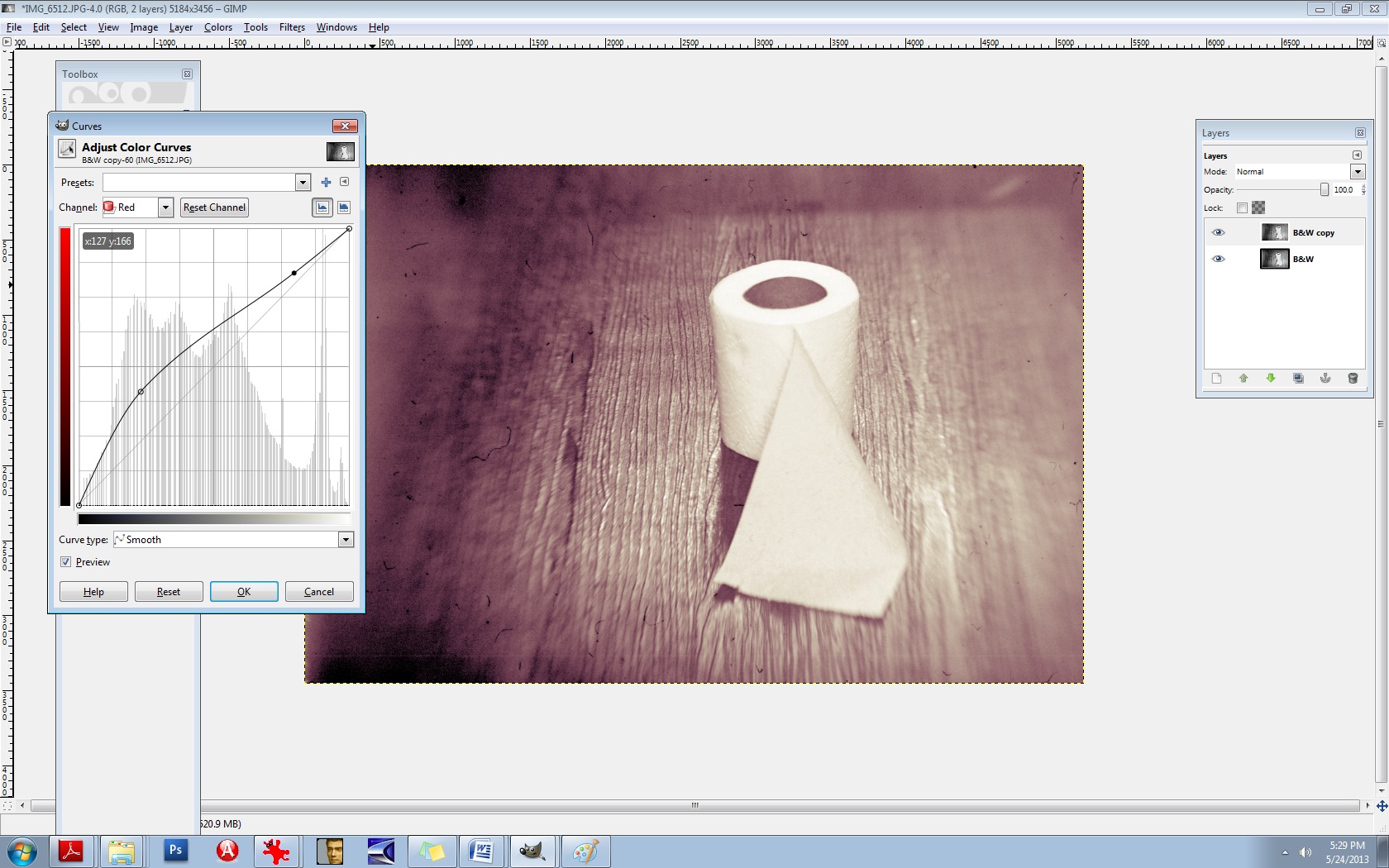
Let’s experiment with the GREEN channel, found in the same area:
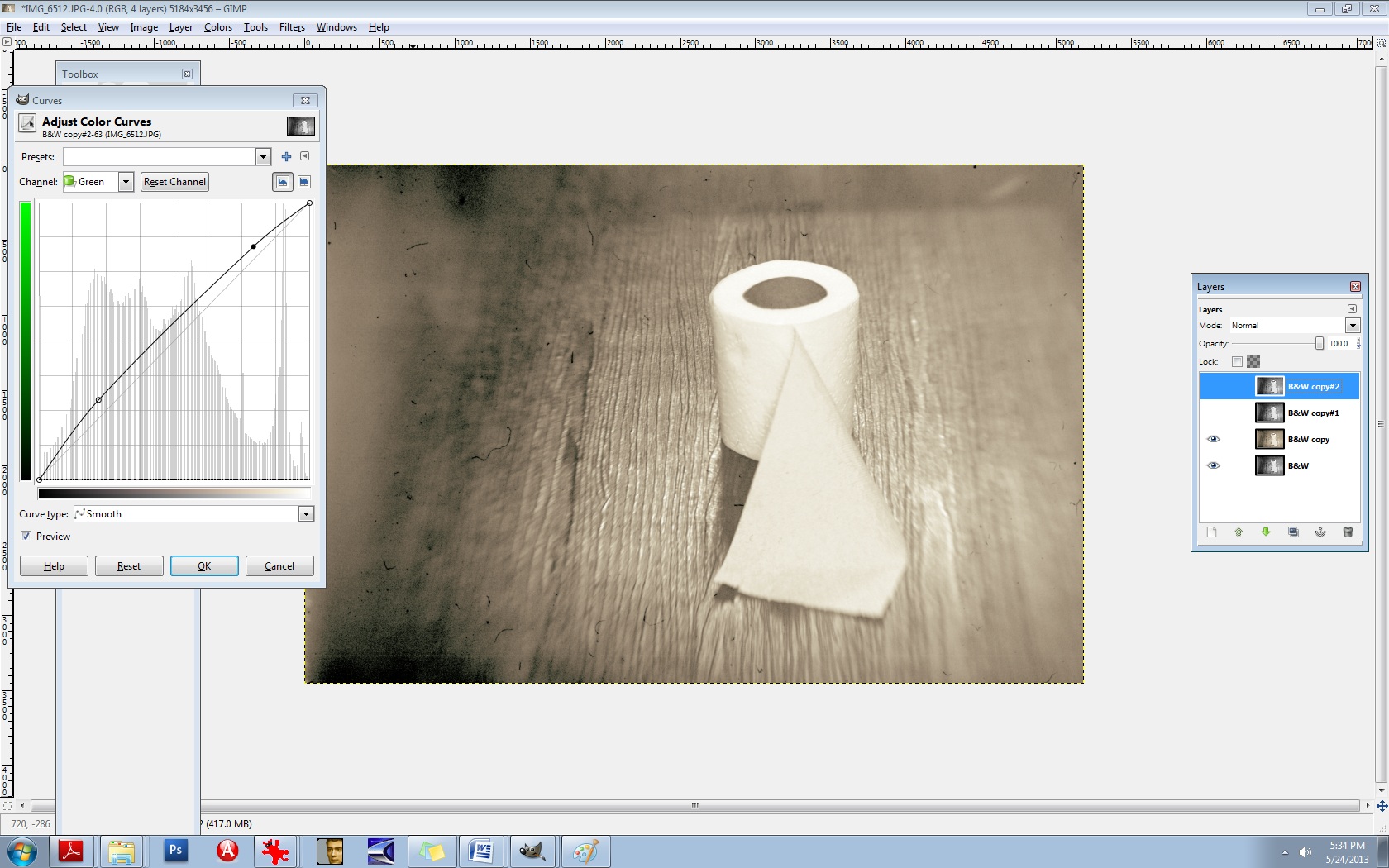
There’s no right or wrong way to do this. Do what makes you happy.
Now, merge the two layers IMAGE/FLATTEN IMAGE and then DUPLICATE the layer once again.
Now you’ll use the same thing: CURVES to adjust your overall lighting. Select COLORS/CURVES. In the CHANNELS box there- the drop-down menu, it’s preset to VALUES. Leave that as is. The diagonal line that you see is the line you’ll be using. Pull the bottom left part of the line straight down to increase your shadows/blacks. As seen here:

It’s still a bit too red for my liking, so let’s run it through the colour balance again to decrease the reds.
Go to COLORS/COLOR BALANCE from the tab at the top and select your MIDTONES channel. Move the slider toward the CYAN -14. Leave the middle slider as is, but set the bottom slider to -1 in the direction of the YELLOW. (In other words, TOWARDS the YELLOW.)
It should now look like this:

It’s a mixture of yellow, red, cyan, magenta, green, and blue but the dominant colours are yellow and green. You’ll notice that it’s not one “flat colour” or tone. There’s more depth here because of the broan ranges in colours. Let’s do one final thing to it to give it a bit of a smoky vignette around the edges. Select your BURN tool. In your TOOLBOX area it’s the tool that is at the bottom, just aboce your colour palette boxes. Move your cursor over it and it’ll read: DODGE/BURN tool. (The DODGE lightens it the BURN darkens it.) We’ll need a bigger brush than the ones offered so let’s create a larger one.
Select your BRUSH tool.
At the very bottom of the pop-up box that displays your brush selection, find the bottom right brush icon and select it. You’ll need to click on the actual CIRCLE brush picture in your brush area to activate it first. That can be found just underneath the OPACITY slider and above the SCALE slider. Once the popup box opens up, you’ll see the needed brush icon in the bottom right corner. If you move your cursor over it, it should read: Open the brush selection dialog
Now at the bottom of THAT area, you will find a NEW BRUSH icon. Click on that. Increase the radius to your desired amount and rename the brush something like LARGE. It will then be added to your brush collection. If you do this, it will come in handy tremendously. You’ll need larger brushes for partial erasing, burning, etc.
Now let’s go back to the burn tool and select your large brush. You’ll need to decrease its size right off the bat, significantly. I set mine to .74% SCALE and 28% OPACITY. Your goal will be to burn the very edges of it neatly, not add a big, puffy smears.
After it’s finished, it should look something like this:

Last but not least, we need to add a bit of a guassian blur to it and then sharpen it. The blur gives it bit more of a vintage finish and we’ll slightly sharpen the focal point afterwards. Let’s go ahead and merge the layers again, IMAGE/FLATTEN IMAGE. (From the tabs at the top.)
DUPLICATE the layer, of course.
Then you’ll choose (from the tabs at the top) FILTERS/BLUR/GUASSIAN BLUR. You’ll see a BLUR RADIUS area which will allow you to set your horizontal and vertical blur radius. Select 2 for both. Click OK.
Next, you’ll need to select (from the tabs at the top) FILTERS/ENHANCE/UNSHARP MASK.
Set the amounts for the following:
RADIUS: 6.4
AMOUNTS: 5.0
THRESHOLD: 0
Over time, you’ll grow more aware of what radius you’ll need for each image.
Now we’re going to layer this underneath our blurred layer. First, let’s name these layers accordingly so we don’t confuse the two. First, be sure to duplicate the bottom layer, always. Anytime you make significant changes to your layer, it’s good practice to duplicate the BG or base layer so you can go back to it if you mess up. So, duplicate that bottom layer. Toggle the EYE icon to invisibility (again, on the bottom BG/layer).
Now, rename the top layer to SHARP and the middle layer to BLUR. The middle layer should be the Guassian Blur layer.
Now you’re going to learn how to erase. First, let’s switch the layers. We want the blurred layer on top and the sharp layer underneath it. You can do this easily by pushing the BLUR layer right up to the top.
We’re all set to erase. Go to your eraser tool which you’ll find in the TOOLBOX area. Select your LARGE brush that you’ve just created. Our goal here is to isolate the focal point, which is the center of the toilet paper roll in this case. We’re needing to erase the blur from the top layer so the sharpened bit can bleed through from the layer underneath. This is one of my most used techniques in editing and I use it with lighting, tones, colours, practically everything. You’ll be able to “paint things” into your photos with your eraser brush this way. I can’t stress the importance of doing this for added depth in an image.
Let’s set our brush to .96% SCALE and about 24% or so for the OPACITY.
Now because we’re going to be erasing FROM the BLUR layer, we’ll need to right click on that layer and select “Add alpha channel”. You’ll need to do this for every layer you’re needing to erase onto. (Only the BLUR layer in this case.)
So let’s erase just around the toilet paper roll itself so that the sharpness will be revealed underneath. If you find that you’re still needing more sharpness, increase your eraser brush’s OPACITY to 60% or so.
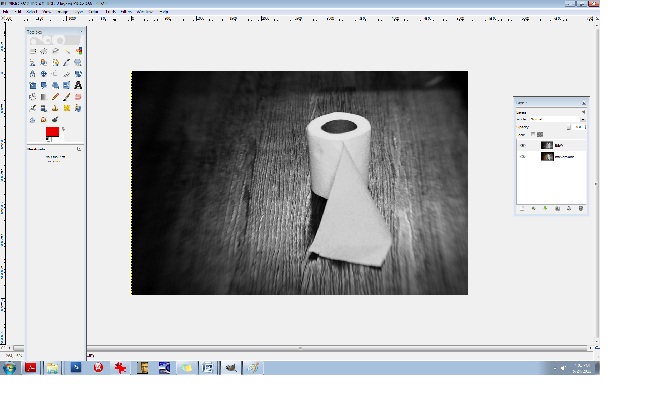
I think we’re just about finished here. You can use these steps to create moody, dramatic, “haunting” images or chemically processed, burned “ugly” type works. They’re not for everyone, but they’re my favourite. Here is a comparative before and after:
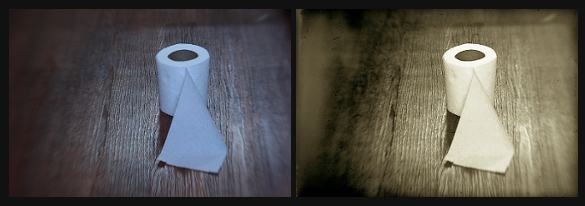
I strongly encourage you to experiment with these steps. Again, there are no right or wrong ways to do them and really, every person is different and we all like different things. In time and through trial and error mostly, you’ll come to find your own distinct style. It took me a good 7+ years to discover most of these things. (Lots of tears, frustration, and aggravation.) I know this seems like a lot of work, but this is actually a “quick edit”. It can become a complex procedure when 5+ textures are involved. All of this is a lot of fun though. I hope I was able to help you some.
xo
-Birgitta
Insomnia
I can’t believe I’m still up at 1:46 a.m.
The house is pretty quiet; Brian Bob is hanging out in his room with is friends, Brianna is sleeping. Josh is in the living room occupying himself and I’m getting ready to fall out of my chair. There is no way I’m getting up at 6 in the morning.
We went down to the river today so I could grab some coloured water shots with my Lensbaby. Try as I might, I can’t get away from shooting in monochrome. The pics that I do shoot in colour don’t stay coloured for long. Everything is prettier to me in black and white (and duotoned). I’m deviating back to my old ways of darker moods, heavier shadows, and dramatic lighting but I love it.
Bob and Josh are chopping up watermelon now. Today would have been my Dad’s birthday. (Technically, it still is, though he is in heaven.) I’m seriously downplaying the craziness that has become my life lately. My mom was hospitalized- near stroke- really, the list is way too long to name. If I were to write about every crazy (weird, sad, bad) thing that happens to me, I swear people would think I’m making it up. Nobody goes through this much crap in one lifetime!
Yes, somebody does.
I know I’m not the only one.
“I think I’m going to do it,” Brianna said to me earlier.
“Do what?”
“Kill myself.”
“Why do you talk like that? What’s wrong with you?”
[She went on to explain that Anthem Bluecross Blue Shield had interrogated her on the phone and I suddenly understood why she felt that way.]
“Why don’t you grow some nads and take it like the rest of us?”
This is our typical mother and daughter bonding. She tells me how bad life is, I tell her that it only gets worse. We have grown on each other over the years, she and I, like an old married couple.
“Brianna, you’re an old curmudgeon and you’re only 18,” I say.
She looks at me as if I’m a robot. She looks as if she’s a robot. She doesn’t blink or show any emotion. I laugh.
“Give it another twenty years, Sissy,” I say to her. “The party’s just getting started.”
Bob is dancing and humming as he eats his watermelon. He shifts his feet sideways almost mechanically. It’s 2:04. Time to hit the hay and do it all over again tomorrow.
Lensbaby Composer/Falls of the Ohio
f/4-ISO 400
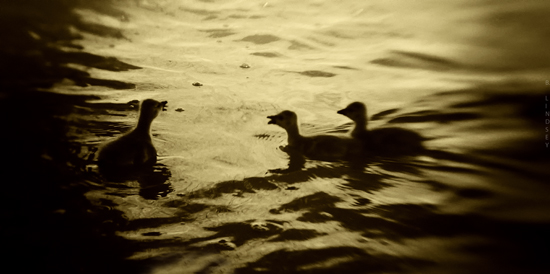
Josh, gazing at the dam
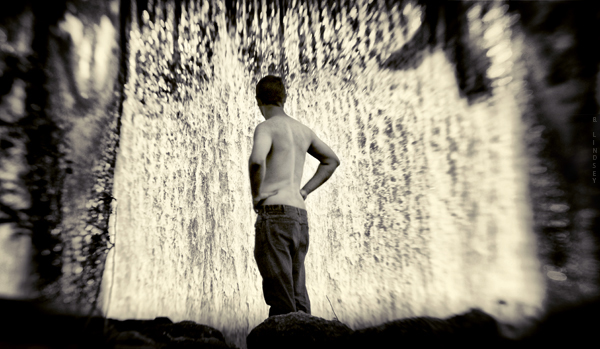



S P L A S H
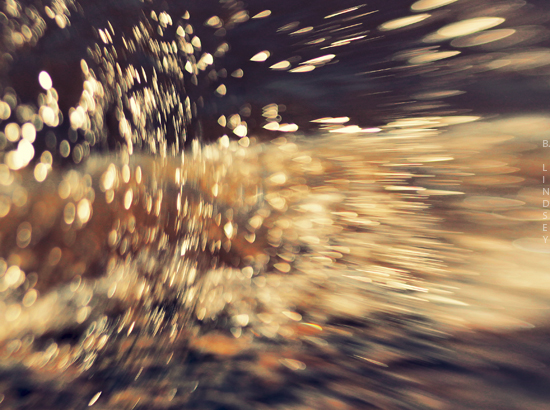
Lensbaby Composer/Double Glass
f/2.8 -natural lighting/ISO 100
sh. sp. – 1/4000/Falls of the Ohio
5.15.13
I may or may not be showing several of my water pieces in a “water exhibit” soon. (More on that later.) For now, it’s hush-hush.
I went out today down to the Falls of the Ohio (which I actually named “Fossil Rock” when I was a child, 30+ years ago) and grabbed some water shots with the Lensbaby. Although I’m not exactly a novice with this particular lens, I’d be a fool to be so comfortable to think that I don’t have much room to improve. And, truth be told, the more I learn in photography, the more I feel that I need to learn. I’m always restless and, artistically, never satisfied- always pushing to grow and learn new things. Years ago, I had considered going to art school. I’m glad I chose to study Behavioral Sciences instead. With art (and photography in particular), the world is my teacher, the camera is my canvas, and lighting is my brush.
Josh and I are headed back out to the dam area. The (possible) exhibit allows only 3 pieces to show. It’s a juried exhibition- I’m excited. (But again, more on that later. It’s not quite “in the bag”.) I can rap off 500 shots in under an hour, and I do that frequently. Selecting only three pieces from a day’s shoot of thousands of pics is like trying to find a flea on a mountain.
I’ve also been invited to show several pieces in a Berlin exhibition. (Yeah- that Berlin!)
Again, it’s a juried exhibition and I want to do it, but I have to be selected first: it’s a bit if a waiting game. I’m still pretty behind in some of my classes and I’ll really need to put my nose to the grind because the exhibition deadlines are within the next week. Time to set my alarm to 6:00 a.m. every morning!
Off and running…


 m o n o c h r o m e j u n k i e †